How to Fax a Document from Google Docs
Google Docs has no built-in fax feature, but you do not need one. Export your document as PDF, upload it to OneFaxNow, and your fax is delivered in minutes. No add-on, no account, no subscription. Works with Google Sheets and Google Slides too.
Can Google Docs send a fax? No — but the workaround takes 2 minutes
Google Docs is a word processor. Faxes travel over phone lines. Google has never added a fax feature to Docs, Sheets, Slides, or any other Workspace app.
Most "fax from Google Docs" guides push you toward installing a Google Workspace Marketplace add-on like Fax.Plus, CocoFax, or HelloFax. These add-ons require an account, a monthly subscription, and often need your Workspace admin to approve the installation. If you just need to send one document, that is overkill.
The faster approach: use Google Docs' built-in PDF export (File > Download > PDF), then upload that PDF to OneFaxNow. No add-on, no admin approval, no subscription. Done in under 5 minutes.
What you'll need
Google Docs document
A Doc, Sheet, or Slides file
Browser or phone
Any device with internet
Fax number
U.S. or Canada number
Payment
Card, Apple Pay, or Google Pay
Step-by-step: fax a Google Docs file
Open your document in Google Docs
Go to docs.google.com (or sheets.google.com or slides.google.com) and open the document you need to fax.
Review it one more time to make sure everything looks correct. Once exported as PDF, the layout is locked in.
Export as PDF
Click File > Download > PDF Document (.pdf). The PDF saves to your Downloads folder.
On mobile (Android): tap the three-dot menu > Share & Export > Save as > PDF Document.
On iPhone: tap the three-dot menu > Send a copy > PDF.
Tip: For Google Sheets, you can choose to export the current sheet or the entire workbook. For multi-page Slides, every slide becomes one PDF page.
Open OneFaxNow and upload the PDF
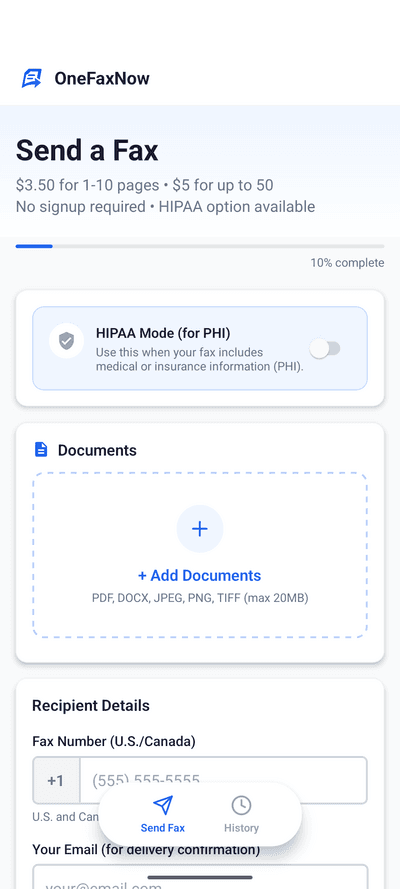
Open a new browser tab and go to OneFaxNow.com. Tap "Send a Fax" to open the fax form. No account creation, no sign-up required.
Click "Choose Files" or drag and drop the PDF you just exported from Google Docs. You can upload up to 15 files and 50 pages per fax.
Enter the fax number and your email
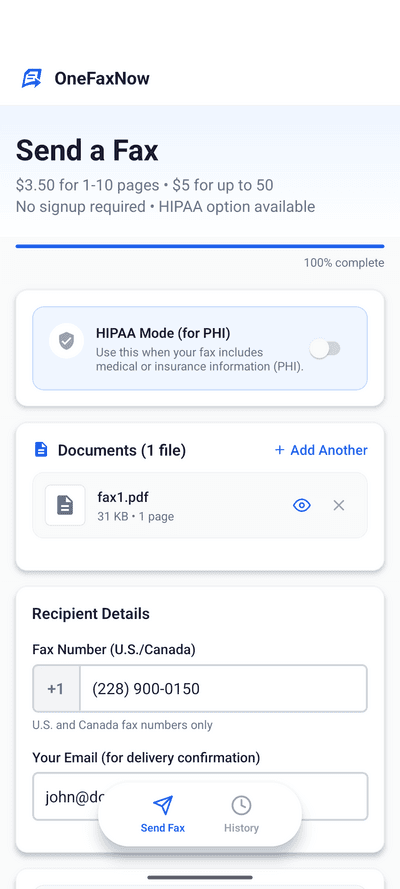
Type the recipient's U.S. or Canada fax number. The form auto-formats as you type — just enter the digits.
Enter your email address to receive a delivery confirmation when the fax goes through.
Optional: toggle "Add Cover Page" to include sender/recipient details and a message on the first page of your fax.
Pay and send
Review your fax details — number, page count, and price — then tap "Pay & Send".
Pay with Apple Pay, Google Pay, or a credit/debit card. Your payment is authorized but not charged until the fax is delivered successfully.
Pay-on-success guarantee: If the fax fails after 3 automatic retries, the authorization is released and you are never charged.
Track your delivery
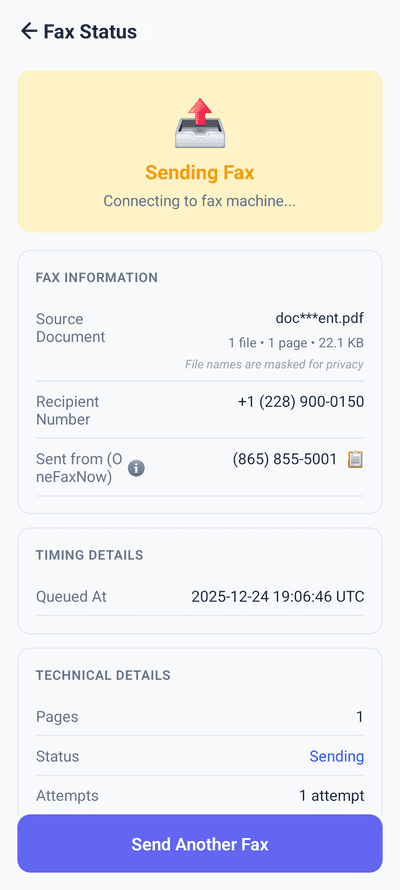
After payment, you'll see a live status page that updates in real time: Sending → Delivered.
- Watch transmission progress live
- Automatic retries if the line is busy (up to 3 attempts)
- Email confirmation when delivery is complete
PDF export for every Google Workspace app
The export path is the same across Docs, Sheets, and Slides. Here is a quick reference.
| App | Desktop | Mobile (Android) | Mobile (iPhone) |
|---|---|---|---|
| Google Docs | File > Download > PDF | Menu > Share & Export > Save as > PDF | Menu > Send a copy > PDF |
| Google Sheets | File > Download > PDF | Menu > Share & Export > Save as > PDF | Menu > Send a copy > PDF |
| Google Slides | File > Download > PDF | Menu > Share & Export > Save as > PDF | Menu > Send a copy > PDF |
Google Sheets: you can choose to export the current sheet or all sheets. Google Slides: each slide becomes one PDF page.
OneFaxNow vs. Google Workspace fax add-ons
Workspace add-ons tie you to a subscription and require admin approval. Here is how the two approaches compare for a one-time fax.
| Feature | Workspace Add-on | OneFaxNow |
|---|---|---|
| Account required | Create account, verify email, pick plan | No account needed |
| Subscription | $4.99-$16.95/mo minimum | Pay per fax: $3.50 for 1-10 pages |
| Admin approval | Required for add-on install | Not needed — works in any browser |
| Setup time | 5-15 min (account + add-on + approval) | Under 2 min (download PDF, upload, pay) |
| Works on mobile | Limited — most add-ons desktop only | Full mobile support, any browser |
| HIPAA option | Enterprise tier ($25+/mo) | $6.50/fax with instant BAA |
| Pay-on-success | Most charge upfront or per-page credits | Authorization released on failure |
Tips for faxing Google Docs
Export as PDF, not DOCX
PDF preserves your exact formatting — fonts, margins, tables. DOCX files can reformat during fax conversion. OneFaxNow auto-compresses large PDFs for faster transmission.
Google Sheets? Check print area first
Before exporting, click File > Print to preview how your spreadsheet will look on paper. Adjust column widths and set a print area if needed — otherwise wide sheets may be cut off.
Medical or legal docs?
If your Google Doc contains protected health information, toggle HIPAA mode before sending. You get encrypted transmission, auto-deletion, and an instant BAA.
On your phone?
Export the PDF from the Google Docs app, then open OneFaxNow.com in your mobile browser. Works on any phone. See also: How to Fax from iPhone or How to Fax from Android.
Why OneFaxNow instead of a Workspace add-on
No add-on to install
Workspace add-ons need admin approval, account creation, and a subscription. OneFaxNow works in any browser — just upload your PDF and send.
No subscription
Pay $3.50 for up to 10 pages. No monthly fee, no credit packs, no auto-renewals to cancel later.
Under 5 minutes
Export from Google Docs, upload to OneFaxNow, enter the number, pay, done. Most faxes deliver within 60 seconds.
Simple pricing
Lite
1-10 pages
$3.50
$3.99 via iOS app
HIPAA add-on: +$3
Standard
11-50 pages
$5.00
$5.99 via iOS app
HIPAA add-on: +$5
Pay only on successful delivery. Authorization released on failure.
Frequently asked questions
Can Google Docs send a fax directly?
No. Google Docs is a word processor with no fax feature. Google has never offered fax in any Workspace app. To fax a Google Doc, export it as PDF (File > Download > PDF) and upload it to an online fax service like OneFaxNow. No add-on or account required.
Do I need a Google Workspace add-on to fax?
No. Workspace add-ons like Fax.Plus and CocoFax require an account, a subscription, and often admin approval. With OneFaxNow, you simply download your document as PDF and upload it at OneFaxNow.com. No add-on, no admin approval, no sign-up.
Can I fax a Google Sheet or Google Slides presentation?
Yes. Google Sheets and Google Slides both export to PDF using the same menu: File > Download > PDF Document. Upload the resulting PDF to OneFaxNow and fax it like any other document.
How do I export a Google Doc as PDF on my phone?
On Android: open the Google Docs app, tap the three-dot menu, then Share & Export > Save as > PDF Document. On iPhone: tap the three-dot menu, then Send a copy > PDF. The PDF saves to your files, ready to upload.
What file types does OneFaxNow accept?
OneFaxNow accepts PDF, DOCX, JPG, PNG, TIFF, and TXT. PDF is recommended for Google Docs exports because it preserves formatting exactly. You can upload up to 15 files and 50 pages per fax.
Can I fax a Google Doc with HIPAA compliance?
Yes. After uploading your PDF to OneFaxNow, toggle HIPAA mode before sending. You get encrypted transmission, automatic file deletion after delivery, exportable audit logs, and an instant Business Associate Agreement (BAA). HIPAA faxes start at $6.50.
Ready to fax your Google Doc?
Export as PDF, upload, send. No add-on, no subscription, no account.