How to Send a Fax from Your iPad
No fax machine, no landline, no account. Open OneFaxNow in Safari on your iPad, upload a document, enter the fax number, and pay. Use Split View to reference your documents while you fax.
What you'll need
iPad
Any model with Safari
Document
PDF, photo, DOCX, or TXT
Fax number
U.S. or Canada number
Payment
Card, Apple Pay, or Google Pay
Step-by-step guide
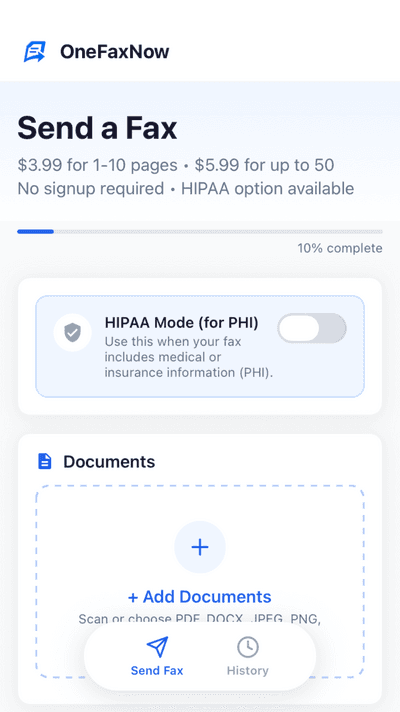
Open OneFaxNow on your iPad
Open Safari and go to OneFaxNow.com. Your iPad runs desktop-class Safari, so you get the full OneFaxNow experience with a larger upload area and easier form filling. You can also download the OneFaxNow app from the App Store -- it adds a built-in document scanner.
No account creation, no sign-up. Tap "Send a Fax" and go straight to uploading.
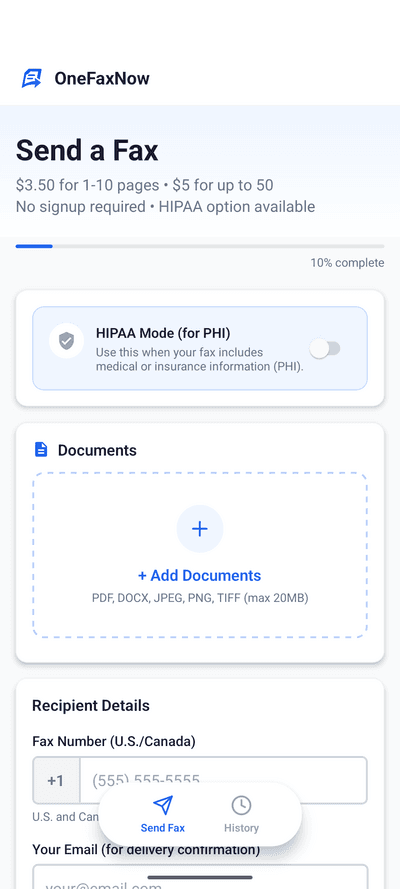
Add your document
Tap "Choose Files" to upload from your iPad. You can select:
- PDF -- from Files, email attachments, or iCloud Drive
- Photo -- JPG or PNG from your camera roll
- DOCX / TXT -- Word documents or plain text
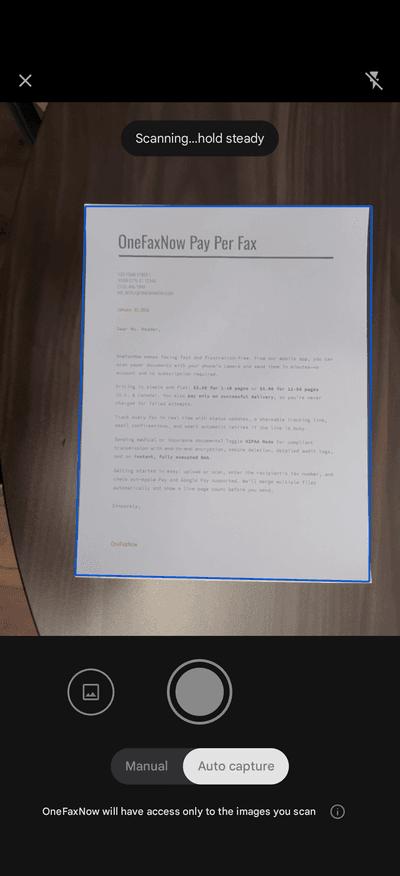
Already have a paper document? Open the Files app or Notes app, scan it with your iPad camera, and save as PDF. The iPad's larger screen makes scanning more accurate than on a phone.
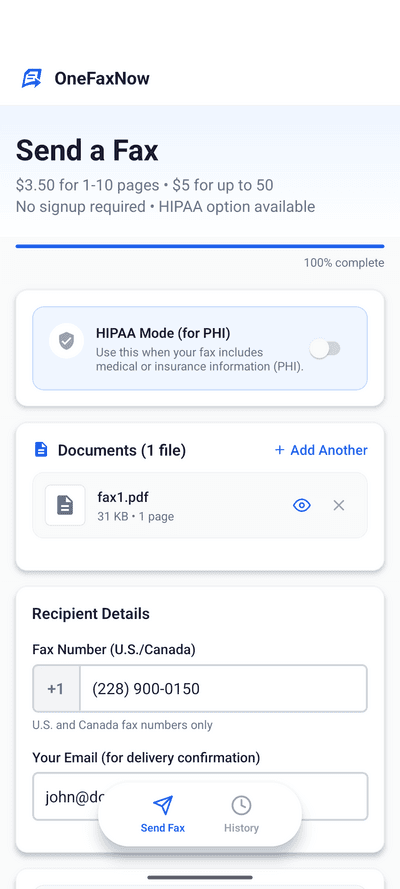
Enter the fax number and your email
Type the recipient's U.S. or Canada fax number. The form auto-formats as you type -- just enter the digits.
Enter your email address to receive a delivery confirmation when the fax goes through.
Optional: toggle "Add Cover Page" to include sender/recipient details and a message on the first page of your fax.
Pay and send
Review your fax details -- number, email, page count, and price -- then tap "Pay & Send".
Pay with Apple Pay for the fastest checkout, or use a credit/debit card. Your payment is authorized but not charged until the fax is delivered successfully.
Pay-on-success guarantee: If the fax fails after 3 automatic retries, the authorization is released and you're never charged.
Track your delivery
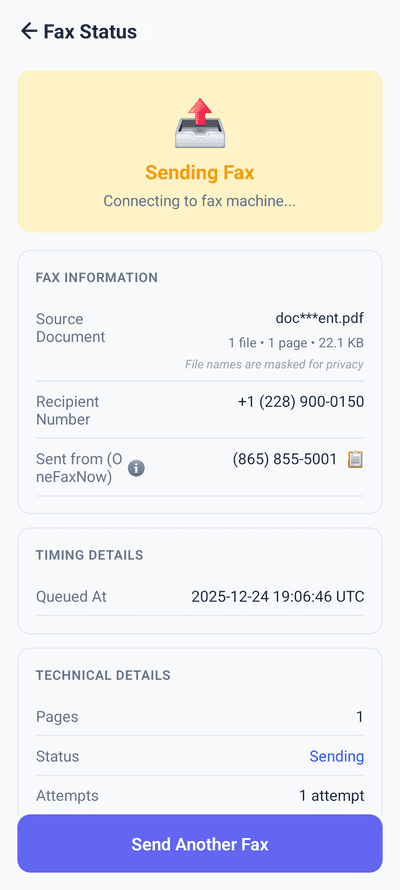
After payment, you'll see a live status page that updates in real time: Sending → Delivered.
- Watch transmission progress live on your iPad
- Automatic retries if the line is busy (up to 3 attempts)
- Email confirmation when delivery is complete
iPad faxing tips
Use Split View while faxing
Open OneFaxNow in Safari on one side and your source document in Files or Notes on the other. You can drag and drop files directly into the upload area.
Sign with Apple Pencil first
Open your PDF in Files, tap the Markup tool, sign with Apple Pencil, save, then upload the signed document to OneFaxNow. Great for forms that require a signature.
Scan with iPad camera
Open the Files app or Notes app and use the built-in scanner. The iPad's larger screen gives you a better preview for aligning multi-page documents.
Medical or sensitive docs?
Toggle HIPAA mode before sending. You get encrypted transmission, auto-deletion of files, full audit trail, and an instant BAA.
Why OneFaxNow for iPad
Desktop-class experience
iPad's Safari runs the full OneFaxNow website -- no mobile compromises. Larger upload area, easier form filling, and drag-and-drop support.
No subscription
Pay per fax, not per month. $3.50 for 1-10 pages on web, $3.99 via the app. No recurring charges, no credit packs.
Under 5 minutes
Upload, fill in the number, pay, done. Most faxes are delivered within 60 seconds of sending.
Simple pricing
Lite
1-10 pages
$3.50
$3.99 via iOS app
HIPAA add-on: +$3
Standard
11-50 pages
$5.00
$5.99 via iOS app
HIPAA add-on: +$5
Pay only on successful delivery. Authorization released on failure.
Frequently asked questions
Can I fax from my iPad without downloading an app?
Yes. Open Safari on your iPad, go to OneFaxNow.com, and send a fax directly from the browser. No app download required. Your iPad runs desktop-class Safari, so you get the full website experience -- not a stripped-down mobile version.
What file types can I fax from iPad?
OneFaxNow accepts PDF, DOCX, JPG, PNG, TIFF, and TXT files. You can also scan paper documents using the built-in scanner in the Files app or Notes app, then upload the resulting PDF.
How much does it cost to fax from iPad?
On the web: $3.50 for 1-10 pages, $5.00 for 11-50 pages. Via the iOS app: $3.99 and $5.99 respectively. HIPAA add-on is available for medical documents. You only pay on successful delivery.
Can I use Apple Pencil to sign a document before faxing?
Yes. Open your PDF in the Files app, tap the Markup icon, and use Apple Pencil to add your signature, annotations, or highlights. Save the marked-up document, then upload it to OneFaxNow.
Can I send a HIPAA-compliant fax from iPad?
Yes. Toggle HIPAA mode before sending to get encrypted transmission, automatic file deletion after delivery, exportable audit logs, and an instant Business Associate Agreement (BAA).
Can I use Split View to fax while viewing another document?
Yes. Open Safari with OneFaxNow on one side and Files, Notes, or any other app on the other. You can even drag and drop documents from the Files app directly into the OneFaxNow upload area.
Do I need a fax machine or phone line?
No. OneFaxNow sends your fax over the internet to the recipient's fax machine. You only need your iPad, an internet connection (WiFi or cellular), and a payment method.
Ready to fax from your iPad?
Upload your document and send in under 5 minutes. No account, no subscription.