How to Fax a Document from Microsoft Word
Microsoft Word has no built-in fax feature, but you do not need one. Save your document as PDF (or upload the DOCX directly), send it through OneFaxNow, and your fax is delivered in minutes. No add-in, no account, no subscription. Works with Word desktop, Word Online, and the Word mobile app.
Can Microsoft Word send a fax? No — but the workaround takes 2 minutes
Microsoft Word is a word processor. It creates documents — it does not transmit them over phone lines. Microsoft has never added a fax feature to Word, Excel, PowerPoint, or any other Office 365 app.
Older guides mention File > Print > Fax in Word desktop, but that option requires Windows Fax and Scan plus a physical fax modem connected to a phone line. Most PCs built after 2015 do not have fax modems. For all practical purposes, that feature is dead.
Other guides push you toward installing a third-party Word add-in from the Microsoft Add-ins store — services like Fax.Plus or eFax. These add-ins require creating an account, picking a subscription plan ($4.99-$16.95/month), and often need your IT admin to approve the installation in managed Microsoft 365 environments.
The faster approach: save your Word document as PDF (or skip that step and upload the DOCX file directly), then upload it to OneFaxNow. No add-in, no admin approval, no subscription. Done in under 5 minutes.
What you'll need
Word document
A .docx or .doc file
Browser or phone
Any device with internet
Fax number
U.S. or Canada number
Payment
Card, Apple Pay, or Google Pay
Step-by-step: fax from Microsoft Word
Save your Word document as PDF
Open your document in Microsoft Word. Before faxing, save it as PDF to lock in your formatting — fonts, margins, and layout will look exactly as you see them on screen.
Word desktop (Windows/Mac): File > Save As > PDF or File > Export > Create PDF/XPS
Word Online: File > Export > Download as PDF
Word mobile (iOS/Android): Tap ... > Print > Save as PDF
Tip: You can also upload the DOCX file directly to OneFaxNow — it accepts Word documents natively. But PDF is recommended because it preserves your exact formatting.
Open OneFaxNow and upload the file
Open a new browser tab and go to OneFaxNow.com. Tap "Send a Fax" to open the fax form. No account creation, no sign-up required.
Click "Choose Files" or drag and drop the PDF you just saved (or the original DOCX). You can upload up to 15 files and 50 pages per fax.
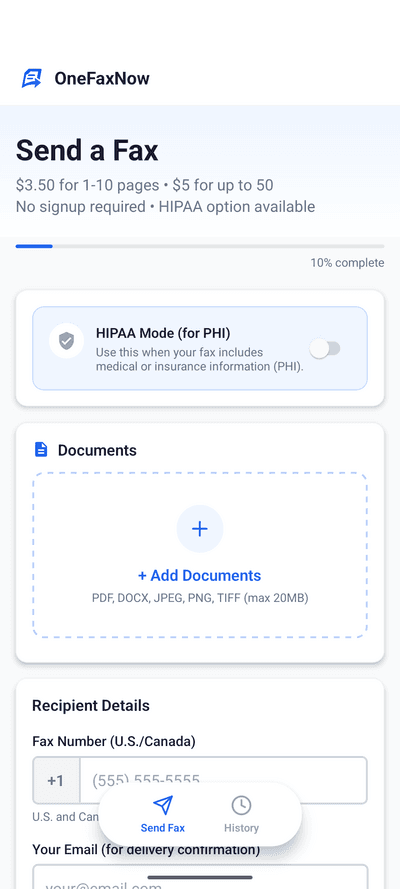
Enter the fax number and your email
Type the recipient's U.S. or Canada fax number. The form auto-formats as you type — just enter the digits.
Enter your email address to receive a delivery confirmation when the fax goes through.
Optional: toggle "Add Cover Page" to include sender/recipient details and a message on the first page of your fax.
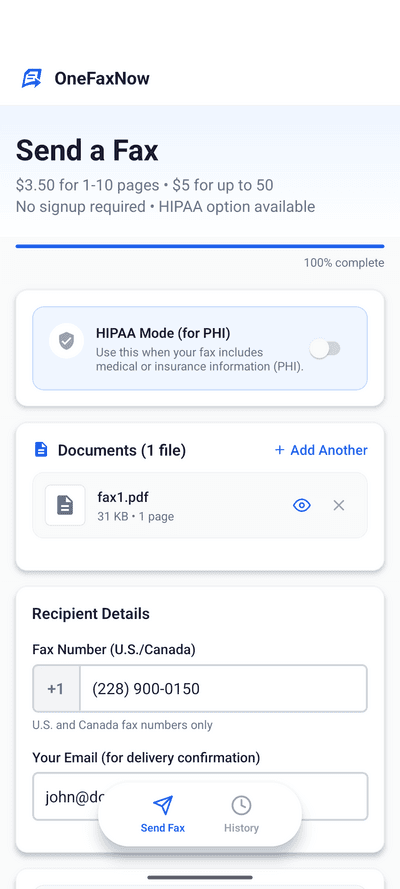
Pay and send
Review your fax details — number, page count, and price — then tap "Pay & Send".
Pay with Apple Pay, Google Pay, or a credit/debit card. Your payment is authorized but not charged until the fax is delivered successfully.
Pay-on-success guarantee: If the fax fails after 3 automatic retries, the authorization is released and you are never charged.
Track your delivery
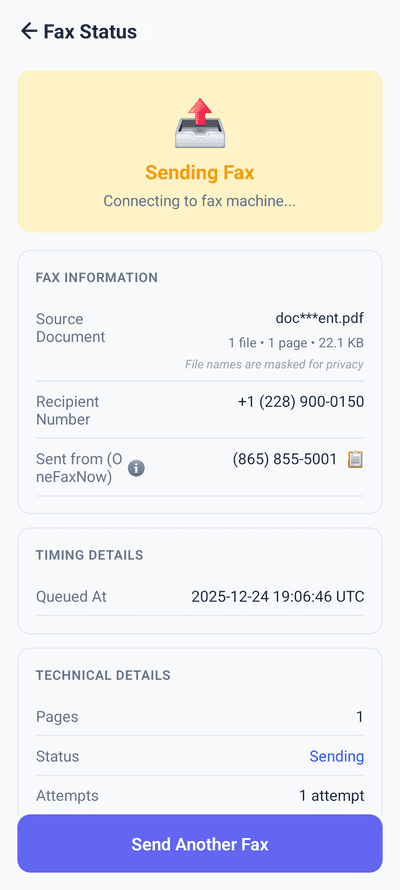
After payment, you'll see a live status page that updates in real time: Sending → Delivered.
- Watch transmission progress live
- Automatic retries if the line is busy (up to 3 attempts)
- Email confirmation when delivery is complete
PDF export for every version of Word
The export path varies slightly between Word desktop, Word Online, and Word mobile. Here is a quick reference.
| Version | Path | Output |
|---|---|---|
| Word desktop (Windows/Mac) | File > Save As > PDF | PDF saved to chosen folder |
| Word desktop (alt) | File > Export > Create PDF/XPS | PDF saved to chosen folder |
| Word desktop (print) | File > Print > Microsoft Print to PDF | PDF saved to chosen folder |
| Word Online | File > Export > Download as PDF | PDF downloads to browser |
| Word mobile (iOS) | ... > Print > Save as PDF | PDF saved to Files |
| Word mobile (Android) | ... > Print > Save as PDF | PDF saved to device storage |
OneFaxNow also accepts DOCX files directly. If you are in a hurry, skip the PDF step and upload the Word file as-is.
OneFaxNow vs. Microsoft Word fax add-ins
Word add-ins tie you to a subscription and require admin approval in corporate environments. Here is how the two approaches compare for a one-time fax.
| Feature | Word Add-in | OneFaxNow |
|---|---|---|
| Account required | Create account, verify email, pick plan | No account needed |
| Subscription | $4.99-$16.95/mo minimum | Pay per fax: $3.50 for 1-10 pages |
| Admin approval | Required for add-in install in managed 365 | Not needed — works in any browser |
| Setup time | 5-15 min (account + add-in + approval) | Under 2 min (save PDF, upload, pay) |
| Works with Word Online | Limited add-in support | Full support — export PDF and upload |
| Works on mobile | No — add-ins are desktop only | Full mobile support, any browser |
| HIPAA option | Enterprise tier ($25+/mo) | $6.50/fax with instant BAA |
| Pay-on-success | Most charge upfront or per-page credits | Authorization released on failure |
Tips for faxing from Microsoft Word
Save as PDF first
PDF locks in your exact formatting — fonts, margins, page breaks. DOCX files can reformat slightly during fax conversion. OneFaxNow auto-compresses large PDFs for faster transmission.
Check your page layout before exporting
Click File > Print to preview how your document will look on paper. Fax machines use 8.5 x 11 inch pages — make sure your margins and layout look right at that size.
Medical or legal docs?
If your Word document contains protected health information or sensitive legal content, toggle HIPAA mode before sending. You get encrypted transmission, auto-deletion, and an instant BAA.
On your phone?
Open the document in the Word mobile app, export as PDF using the Print menu, then upload to OneFaxNow in your browser. The whole process takes under 5 minutes.
Why OneFaxNow for Word documents
Accepts DOCX natively
Upload your Word file directly — no conversion required. Or save as PDF for guaranteed formatting. Your choice.
No subscription
Pay per fax, not per month. $3.50 for 1-10 pages on web, $3.99 via the app. No recurring charges, no credit packs.
Under 5 minutes
Save PDF, upload, enter fax number, pay. Most faxes are delivered within 60 seconds of sending.
Simple pricing
Lite
1-10 pages
$3.50
$3.99 via iOS app
HIPAA add-on: +$3
Standard
11-50 pages
$5.00
$5.99 via iOS app
HIPAA add-on: +$5
Pay only on successful delivery. Authorization released on failure.
Frequently asked questions
Can I fax directly from Microsoft Word?
Not without extra software. Word has no built-in fax feature, and the legacy Windows Fax and Scan option requires a fax modem that modern PCs do not have. The fastest approach: save your document as PDF (File > Save As > PDF) or keep it as DOCX, upload it to OneFaxNow.com, and send. No add-in, no account, no subscription.
Can I upload a DOCX file without converting to PDF?
Yes. OneFaxNow accepts DOCX files directly and converts them server-side. However, saving as PDF first is recommended because it preserves your exact formatting — fonts, margins, and page layout.
Does Microsoft 365 have a fax service?
No. Microsoft 365 does not include fax in any plan — not in Word, Outlook, Excel, or Teams. Third-party add-ins exist in the Microsoft Store but require separate subscriptions starting at $4.99/month and often need admin approval.
How do I save a Word document as PDF?
Desktop: File > Save As, choose PDF from the format dropdown. Word Online: File > Export > Download as PDF. Mobile: tap the three-dot menu > Print > Save as PDF.
Can I fax a Word document from my phone?
Yes. Open the document in the Word mobile app, export it as PDF (three-dot menu > Print > Save as PDF), then upload the PDF to OneFaxNow.com in your phone's browser. The entire process takes under 5 minutes.
Can I send a HIPAA-compliant fax from a Word document?
Yes. After uploading your document to OneFaxNow, toggle HIPAA mode before sending. You get encrypted transmission, automatic file deletion after delivery, exportable audit logs, and an instant Business Associate Agreement (BAA). HIPAA faxes start at $6.50.
Ready to fax your Word document?
Save as PDF or upload the DOCX directly. No add-in, no account, no subscription.