Sending a Fax from a Chromebook or Shared Computer: Privacy Best Practices
Securely fax from Chromebooks or shared computers—use browser-based faxing, verify numbers, enable HIPAA mode for PHI, and clear downloads.
Sending a Fax from a Chromebook or Shared Computer: Privacy Best Practices
When faxing from a shared device like a Chromebook or library computer, your privacy is at risk. Files can linger in downloads, browser caches, or open tabs, exposing sensitive information to others. Here's how to stay secure:
- Use a browser-based fax service like OneFaxNow to avoid installing software or leaving persistent files.
- Check your document for sensitive data like personal identifiers or health information. If it contains Protected Health Information (PHI), use a HIPAA-compliant fax option.
- Verify the recipient's fax number to prevent sending to the wrong person.
- Clean up after faxing: Delete downloaded files, clear browser history, and log out of accounts.
Online faxing is safer than traditional methods like public fax stores, offering encrypted transmission and eliminating physical document handling. Always follow these steps to protect your data when using shared devices.
Handling Sensitive Information Before You Send
Before uploading anything to a shared device, take a moment to review your document. Ask yourself two key questions: Does this identify a specific person? and Does it include health, financial, or legal details? If the answer to both is yes, you’re dealing with sensitive information that requires extra precautions. This quick check not only reduces risks but also helps you select the right fax method and minimizes the need for corrections later.
Be sure to flag any documents containing personal identifiers like Social Security numbers, bank account details, or medical information. Legal documents, such as powers of attorney, custody agreements, or immigration forms, also fall into this category. If a document combines personal identifiers with sensitive details, treat it accordingly. To further protect privacy, remove unrelated attachments or notes before sending.
Regular Faxes vs. HIPAA-Required Faxes
Next, it’s important to determine whether a standard fax will suffice or if HIPAA-compliant faxing is necessary.
Not all faxes require HIPAA-level security. Documents like school enrollment forms, job applications, or simple contracts don’t typically qualify as Protected Health Information (PHI), so a regular fax is perfectly fine for these.
However, a HIPAA-compliant fax is required when a document contains health-related information tied to an identifiable person. For instance, a completed insurance claim listing a diagnosis alongside a patient’s name or a referral letter from a doctor’s office would fall under this category. When in doubt, call the recipient to confirm whether HIPAA compliance is needed.
OneFaxNow’s optional HIPAA mode is built for these situations. It provides enhanced encryption during transmission and storage, limits data retention, and offers an instant Business Associate Agreement (BAA) directly from the dashboard. This is particularly helpful for shared-device users, as it ensures PHI is encrypted and minimizes how long sensitive data remains accessible. Pricing for this service is $6.50 for 1–10 pages and $10.00 for 11–50 pages.
"HIPAA compliance is required by law when transmitting Protected Health Information (PHI). OneFaxNow makes it easy with our HIPAA add-on that includes instant BAA generation and enhanced security features." - OneFaxNow
Here’s a quick guide to determine the appropriate fax type:
| Document Type | Contains PHI? | Fax Type Needed |
|---|---|---|
| School permission slip, job application | No | Regular fax |
| Completed insurance claim with diagnosis + patient name | Yes | HIPAA-compliant fax |
| Blank medical form (no patient data filled in) | No | Regular fax |
| Doctor's referral letter with patient ID and treatment notes | Yes | HIPAA-compliant fax |
| Legal contract without health details | No | Regular fax |
Verifying the Recipient’s Fax Number
Sending a fax to the wrong number is one of the easiest privacy mistakes to avoid, yet it can have serious consequences. A misdirected fax containing PHI or legal documents could result in a HIPAA breach, requiring patient notification and potentially drawing regulatory scrutiny.
To prevent this, always verify the fax number through a trusted source, such as the recipient’s official website, a printed letter, or a secure client or patient portal. Avoid relying on search results or third-party directories, which may be outdated. For first-time transmissions or highly sensitive documents, call the recipient’s office directly to confirm both the fax number and the department that will receive it.
When entering the number into OneFaxNow, type carefully and double-check each digit before submitting. If you’re sending particularly sensitive information, consider sending a cover page first to confirm the line is active and reaches the correct recipient before transmitting the full document.
sbb-itb-0df24da
Browser-Based Faxing: How to Send Without Installing Anything
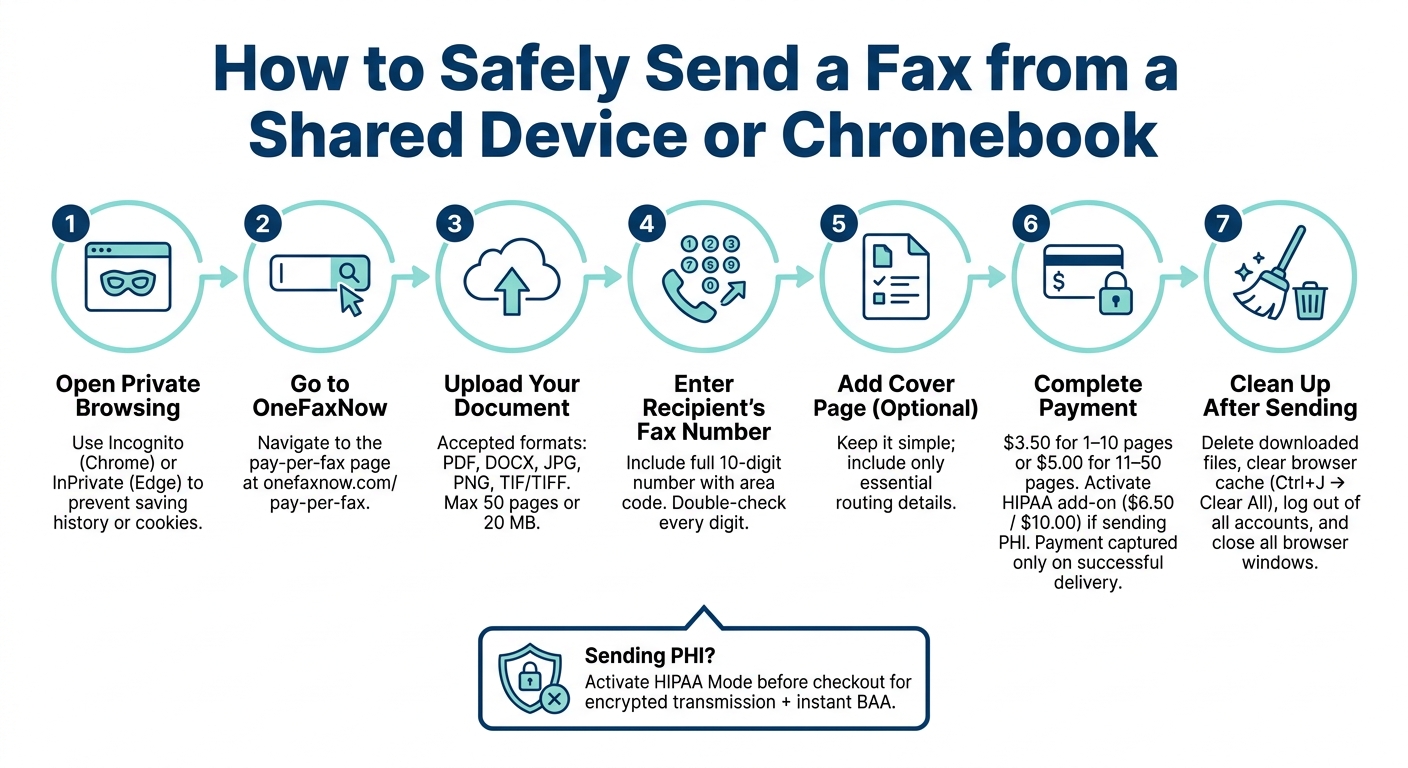
How to Safely Send a Fax from a Shared Device or Chromebook
Using OneFaxNow on a shared device is incredibly straightforward because it operates entirely within your browser. There’s no need for downloads, installations, or even an account. It’s quick to set up, and when paired with proper cleanup after use, it helps keep your sensitive information secure. Unlike traditional fax apps or services, this method leaves minimal traces behind.
Step-by-Step: Sending a Fax in Chrome or Edge
- Open a private browsing window: Use Incognito mode in Chrome or InPrivate mode in Edge to prevent saving history, cookies, or form data.
- Go to OneFaxNow's pay-per-fax page: This is where you’ll begin the process.
- Upload your file: Accepted formats include PDF, DOCX, JPG, PNG, and TIF/TIFF, with a limit of 50 pages or 20 MB. Chromebook users can typically find their files in the Downloads folder or Google Drive.
- Enter the recipient’s fax number: Make sure to include the full 10-digit number, including the area code, and double-check it for accuracy.
- Add a cover page (optional): If needed, keep the cover simple and include only essential details for routing the document.
- Complete payment: The cost is $3.50 for 1–10 pages or $5.00 for 11–50 pages, processed securely through Stripe. If sending PHI, activate the HIPAA add-on before checkout to ensure you meet all HIPAA fax requirements. Importantly, payment is only captured if the fax is successfully delivered.
- Save your confirmation: Record the on-screen reference ID and decline any prompts to save payment or form data. Once done, log out of your email and clear your downloads to protect your privacy on shared devices.
Now that you’ve sent your fax, let’s explore how browser-based faxing with OneFaxNow stacks up against using a public fax store.
Online Faxing vs. Public Fax Stores: A Side-by-Side Look
While public fax stores like FedEx or UPS might seem convenient, they come with privacy risks that are often overlooked. Using a shared physical machine means your document is handled in printed form, and there’s always the chance of leaving a page behind. With browser-based faxing, everything remains digital, reducing these risks significantly.
| Factor | OneFaxNow (Browser-Based) | Public Fax Store (e.g., FedEx, UPS) |
|---|---|---|
| Document handling | Digital only; no physical copy | Printed pages handled at a shared counter |
| Risk of leaving documents behind | None | High risk, especially for multi-page faxes |
| Bystander exposure | Minimal (private window, your screen) | High (open counter, staff, other customers) |
| Software installation required | No | No, but requires travel |
| Encryption | TLS/HTTPS during transmission | Unencrypted analog signal over phone line |
| Delivery confirmation | Real-time tracking link + email | Paper receipt only |
| Cost (1–10 pages) | $3.50 | Varies; typically $1.00–$2.00/page + fees |
For longer documents, the cost difference is even more noticeable. A 10-page fax at a retail store can easily cost $10–$20 or more, depending on the location, compared to OneFaxNow’s flat $3.50 fee. Beyond cost, the encryption difference is critical. Traditional fax machines use unencrypted analog signals, while OneFaxNow ensures secure transmission with TLS/HTTPS, reducing the risks tied to physical faxing. This makes browser-based faxing a safer and more efficient option.
Post-Fax Cleanup on Shared Devices
After securely sending a fax through OneFaxNow, it’s crucial to clean up any traces of your session, especially when using a shared device. The job isn’t done once the fax is sent - residual files, open tabs, and active logins can put your sensitive information at risk.
Deleting Downloads and Temporary Files
When you upload a file - whether it’s a PDF, DOCX, or image - to OneFaxNow, it often ends up in your device’s Downloads folder. To protect your privacy:
- Open the Downloads folder, sort by Date modified, and delete files from your session (e.g.,
insurance_claim.pdf). - Empty the Recycle Bin or Trash to permanently remove the files.
Next, take care of your browser’s download history and cached data:
- For Chrome or Edge: Press
Ctrl + J, then select Clear all to wipe the download list. - Go to Settings → Privacy and security → Clear browsing data, set the time range to Last hour, and clear cached document thumbnails, cookies, and temporary login data.
If you used Incognito or InPrivate mode, closing all private windows will automatically erase browsing history, cookies, and form data. However, downloaded files remain on the device and must be deleted manually.
Once you’ve handled file cleanup, secure your account by logging out.
Logging Out and Closing Browser Sessions
Deleting files is only part of the process - ending active sessions is just as critical. If you logged into email to check a delivery confirmation, make sure to explicitly sign out of each account (e.g., Gmail, Outlook.com). Closing a tab without signing out could leave your session open, allowing the next user to access your account without needing a password.
After logging out, close all tabs associated with the fax transaction. This includes the OneFaxNow page, any cloud storage services, and document viewer tabs. To fully terminate session data, close the entire browser window - not just individual tabs.
If you’re on a Chromebook using a guest session, select Exit guest when finished. This step ensures Chrome OS clears all local data from your session automatically.
Why Online Faxing Is Safer Than a Public Fax Store
Privacy Concerns With Physical Faxing
Sending a fax from a public store might seem straightforward, but it comes with privacy risks due to the physical nature of the process. Documents exchanged at a public fax store often pass through multiple hands, increasing the chances of misplacement or exposure. On top of that, shared machines used for faxing can leave behind sensitive details - confirmation pages with recipient information or timestamps may sit in plain sight or get discarded without proper shredding.
Online faxing, however, avoids these pitfalls entirely. By using a browser-based service, your documents remain digital throughout the process, reducing the risk of unauthorized access.
Speed and Convenience of Faxing From a Browser
Going digital doesn’t just protect your privacy - it also saves time. With services like OneFaxNow, you can send a fax directly from your browser, such as Chrome or Edge, without printing, interacting with staff, or waiting for a turn at the copier. This means no travel and no waiting in line, making it possible to send a signed insurance form or a court document in just a few minutes, even from a shared computer like a library workstation.
Another advantage? Online faxing provides a digital status link and email confirmation, giving you clear and trackable proof of delivery. Compare that to the paper receipts from public fax stores, which are easy to lose and offer less detailed tracking. For anyone handling sensitive documents - like medical records, legal papers, or financial forms - this kind of secure, verifiable confirmation is a game-changer.
| Aspect | Online Faxing (Browser-Based) | Public Fax Store |
|---|---|---|
| Document handling | Digital only; no printing needed | Physical pages handled by staff |
| Who sees your document | You and the fax provider's system | Clerk, other customers nearby |
| Transmission security | TLS-encrypted connection | Unencrypted analog phone line |
| Delivery confirmation | Digital status + email with job ID | Paper receipt on shared machine |
| HIPAA compliance option | Available with BAA | Rarely offered |
| Convenience | Send from any browser, 24/7 | Requires travel; limited hours |
Conclusion: Privacy Best Practices for Shared-Device Faxing
Faxing on shared devices can be secure if you make cleanup a regular part of your process. With OneFaxNow, you can send faxes directly from your browser - whether you’re using Chrome or Edge. Simply open the service, upload your document, verify the recipient’s fax number, and send. Since OneFaxNow operates entirely in the browser without requiring software installation or account creation, no leftover data lingers on the device.
After sending, make sure to delete any downloaded files, close all browser tabs, and log out of any email or account sessions. For specific steps on clearing files and caches or logging out, refer to the cleanup guide provided earlier in this article.
OneFaxNow ensures that your document travels securely from your browser to the recipient's fax machine. Once the fax is delivered, the document is automatically removed from their servers [1]. This method eliminates the risks associated with physical faxing at public locations - no printed pages, no third-party handling, and no confirmation sheets left behind.
For documents containing protected health information (PHI), such as medical records or insurance forms, activate HIPAA mode. This feature encrypts your transmission and instantly executes a Business Associate Agreement (BAA), offering the extra protection required for sensitive information. To learn more about secure faxing and session cleanup, check out our digital fax security blog.
FAQs
What traces can a fax leave on a shared computer?
Using a shared computer to send a fax can leave behind traces of your activity, such as downloaded files or temporarily stored documents. Browsers might also cache pages or save form data, which could expose sensitive information. To protect your privacy, take a few precautions:
- Clear the downloads folder, browser history, cookies, and cache once you're done.
- If you accessed your email, make sure to log out completely to prevent anyone else from gaining access.
These simple steps can go a long way in keeping your information secure.
How do I know if I need HIPAA faxing for my document?
You need HIPAA-compliant faxing if your document includes Protected Health Information (PHI). PHI refers to any data that identifies a patient and ties to their health, treatments, or billing details. This is a legal obligation for healthcare providers, business associates, and covered entities.
To comply with these regulations, choose a service that offers end-to-end encryption, secure audit trails, and an executed Business Associate Agreement (BAA). For example, OneFaxNow’s HIPAA mode provides these essential features.
What should I delete or log out of after faxing?
After using a shared computer to fax, it's important to protect your privacy. Start by logging out of your email, especially if you accessed it to view confirmations or receipts. Next, clear the browser's download history and delete any temporary files or saved documents. Shared computers often don't automatically erase these files, so taking these steps ensures your sensitive data stays secure.