How to Fax Legal Documents from Home Without a Printer or Scanner
Scan pages with your phone, make a PDF, and send secure pay-per-fax (HIPAA available) without a printer.
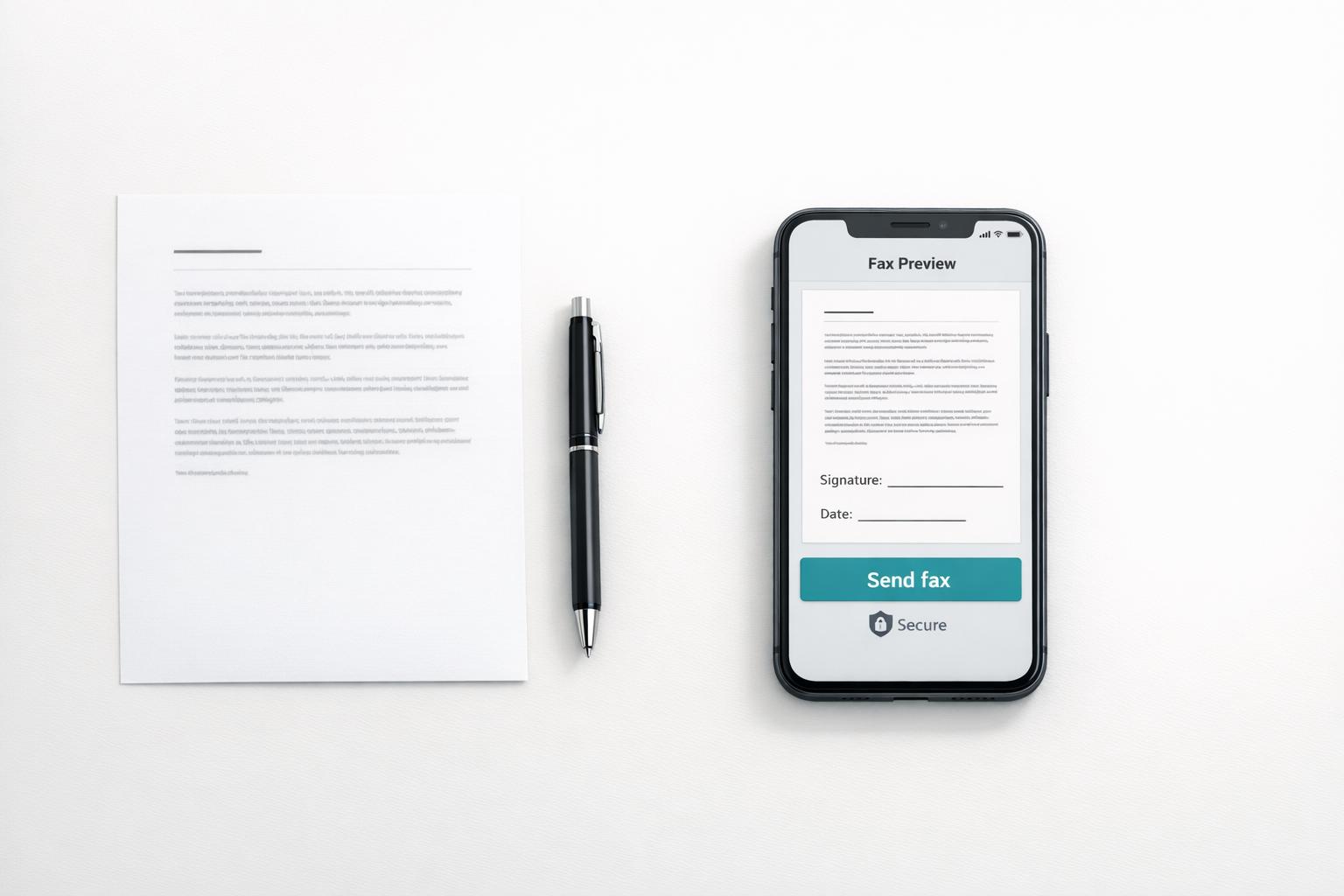
How to Fax Legal Documents from Home Without a Printer or Scanner
Got a smartphone and Wi-Fi? That’s all you need to fax legal documents without bulky office equipment. Here's how:
- Scan Pages with a Phone App: Use apps like Adobe Scan, Microsoft Lens, or Google Drive to create clear, multi-page PDFs.
- Prepare the File: Ensure all details - signatures, stamps, and text - are sharp and legible.
- Send via Online Fax Service: Upload your PDF to a pay-per-fax service like OneFaxNow, review, and send.
Key Tips:
- Use bright lighting and flat surfaces for better scans.
- Double-check court fax rules or agency guidelines before sending.
- Save delivery confirmations as proof for your records.
Faxing is quick and affordable with pay-per-fax services like OneFaxNow - starting at $3.50 for up to 10 pages. For sensitive files, enable HIPAA mode for added security. Skip the printer and get it done from your phone.
How to Prepare Legal Documents Using a Smartphone
Mobile Scanning Apps That Produce Clean PDFs
Using your phone's camera for legal documents can result in skewed angles, uneven lighting, and hard-to-read text, especially after faxing. That’s where mobile scanning apps like Adobe Scan, Microsoft Lens, and Google Drive come in handy. These apps automatically detect document edges, correct perspective, and enhance text contrast to create PDFs that rival those from a flatbed scanner. For example, Adobe explains that Adobe Scan uses AI to sharpen text, remove shadows, and ensure clear edges - essentially turning your phone into a scanner. If you’re using an iPhone, the built-in Notes app offers similar functionality without needing additional downloads.
When choosing a scanning app, make sure it supports multi-page PDF export. Legal documents often consist of multiple sections, such as a cover page, main forms, exhibits, and signature pages. Combining these into a single, organized PDF is far more practical than juggling separate image files. To get the best scans, it’s also crucial to set up your environment properly.
How to Scan Pages So They Come Out Clear
Getting a clear scan starts with proper setup. Place your document on a flat, high-contrast surface under bright, even lighting. Hold your phone directly above the page, allowing the app to auto-detect borders. After capturing, double-check the corners and edges, and adjust them manually if needed.
Always review each page after scanning. If a page looks "just okay" on your screen, it might turn out illegible after faxing. It’s better to rescan right away than to risk poor quality. Use the app’s enhancement modes like "Document", "Black & White", or "Scan" to boost contrast and whiten the background - this makes the document more fax-friendly. For best results, scan at 300 DPI, which is the standard for legal-grade faxes. Most fax machines operate at 200×400 DPI, so 300 DPI provides a good balance between clarity and file size [4].
Making Sure Signatures and Stamps Are Visible
Signatures and notary stamps are often the trickiest parts of a legal document to scan. To ensure they’re clear, position the camera directly above the page and zoom in to check that all signature lines are dark and continuous. This extra step helps meet the quality standards required for legal documents. Be especially mindful of initials in the margins, as they can be accidentally cropped out during auto-adjustments.
For notary seals or embossed stamps, switch to a color or photo mode instead of black-and-white. This helps capture the details of colored ink and raised impressions. If signatures appear faint, tweak the brightness and contrast settings before exporting the file.
Keep in mind that electronic signatures aren’t always accepted for legal documents. While the U.S. ESIGN Act and UETA validate e-signatures for many contracts, they don’t apply to certain documents like wills, some family law filings, or specific court submissions. Always check the requirements of the receiving court or agency before faxing a digitally signed document. When in doubt, a clearly scanned wet-ink signature is often the safer option.
sbb-itb-0df24da
How to Send Legal Faxes Online from a Smartphone
Once you've scanned your legal documents into high-quality PDFs, you're ready to fax them directly from your smartphone. Here's how to ensure your fax is sent correctly and efficiently.
Uploading and Arranging Your Documents Before Sending
Make sure your documents are uploaded in the correct order: start with the cover page, then the main form, followed by exhibits, and end with the signature page. This ensures the recipient gets everything in the intended sequence. OneFaxNow supports a variety of file formats, including PDF, DOCX, JPG, PNG, and TIFF, with a total limit of 50 pages [1]. If your files are password-protected, you'll need to unlock them first, as encrypted files cannot be processed [4].
Before hitting "send", take advantage of the preview feature to carefully review each page. Check that margins are aligned and signatures are clearly visible - this step can save you from having to resend the fax later. Once everything looks good, you're ready to send your fax quickly using OneFaxNow.
Using OneFaxNow to Send a Fax Fast
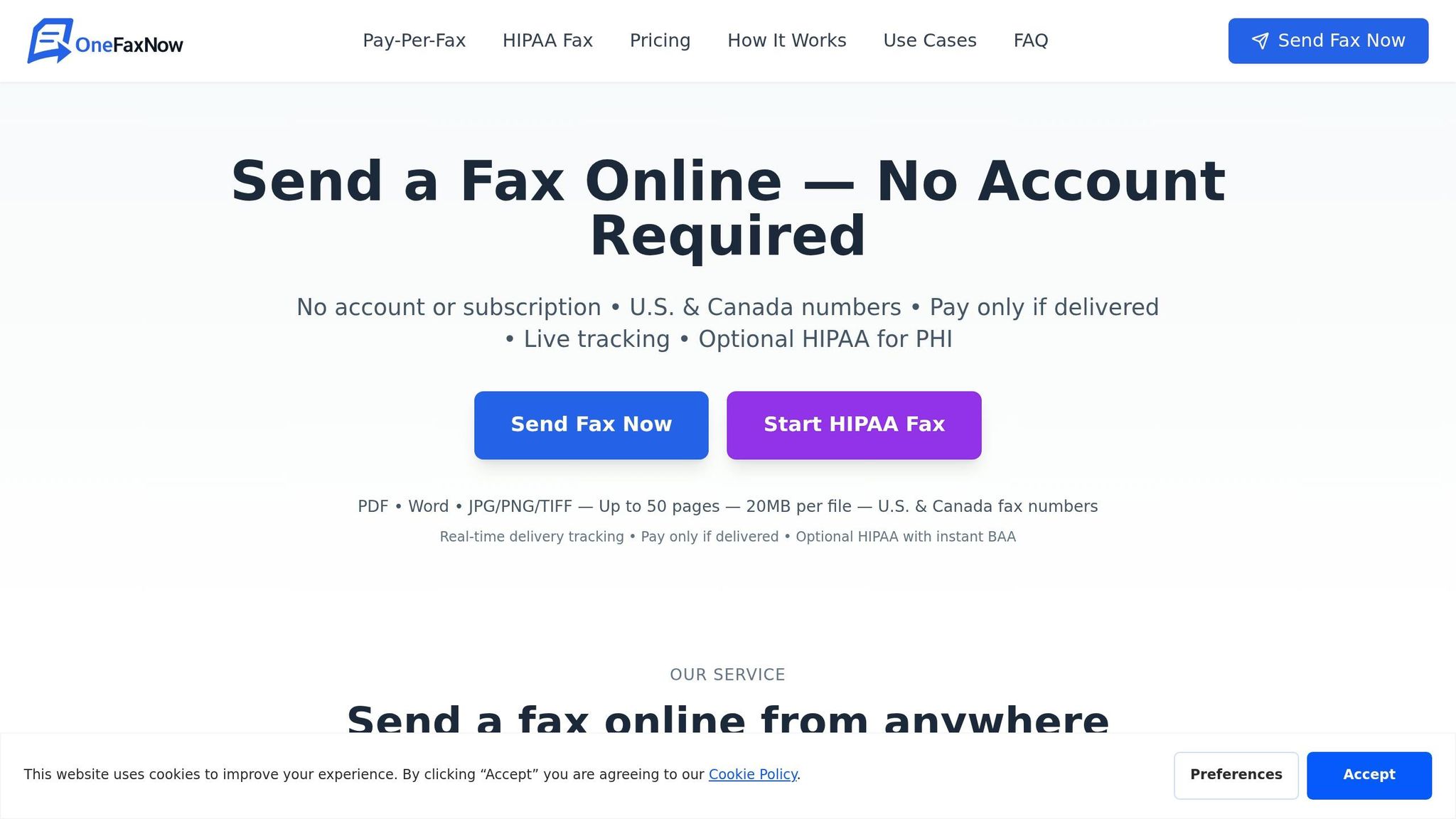
OneFaxNow simplifies the process by eliminating the need for an account, making it ideal for one-time legal faxes. Here's how it works:
- Upload your files.
- Enter the recipient's fax number.
- Add an optional cover page (this will count as page one).
- Complete checkout via Stripe.
Pricing is straightforward: $3.50 for 1–10 pages (Lite plan) and $5.00 for 11–50 pages (Standard plan) [1]. Payment is only processed if the fax is successfully delivered. If delivery fails after three retries, the authorization is released, and you won't be charged [1].
Once you've paid, you'll get access to a live status page that updates the fax's progress in real-time, from "Sending" to "Delivered" [2]. For your records, an email receipt with a job ID and tracking link serves as proof of transmission.
If you're dealing with sensitive health data, OneFaxNow offers additional security measures.
When to Turn On HIPAA Mode for Sensitive Documents
HIPAA mode is specifically designed for documents containing Protected Health Information (PHI), such as medical records for disability claims, treatment summaries in personal injury cases, or health-related insurance forms. Activating HIPAA mode adds several layers of security:
- HIPAA-compliant encryption for secure transmission.
- Enhanced file deletion to protect PHI.
- Access to an Audit Dashboard with immutable logs.
- An instantly generated Business Associate Agreement (BAA), available in your dashboard once the fax is sent.
The HIPAA add-on costs +$3.00 on the Lite plan (totaling $6.50) and +$5.00 on the Standard plan (totaling $10.00) [3].
| Feature | Standard Pay-Per-Fax | HIPAA Mode |
|---|---|---|
| Encryption | Standard secure handling | HIPAA-compliant encryption |
| BAA | Not included | Instant, fully executed BAA |
| Audit logs | Email confirmation | Audit Dashboard (CSV/PDF) |
| File deletion | Automatic deletion | Enhanced secure PHI deletion |
| Best for | General legal correspondence | Medical records, PHI, disability claims |
To enable HIPAA mode, toggle the option at the top of the fax form before uploading your files. For general legal documents, the standard plan is sufficient. However, for faxes involving sensitive health information, the HIPAA add-on provides the extra security and compliance needed.
Comparing Online Fax Services for Legal Use
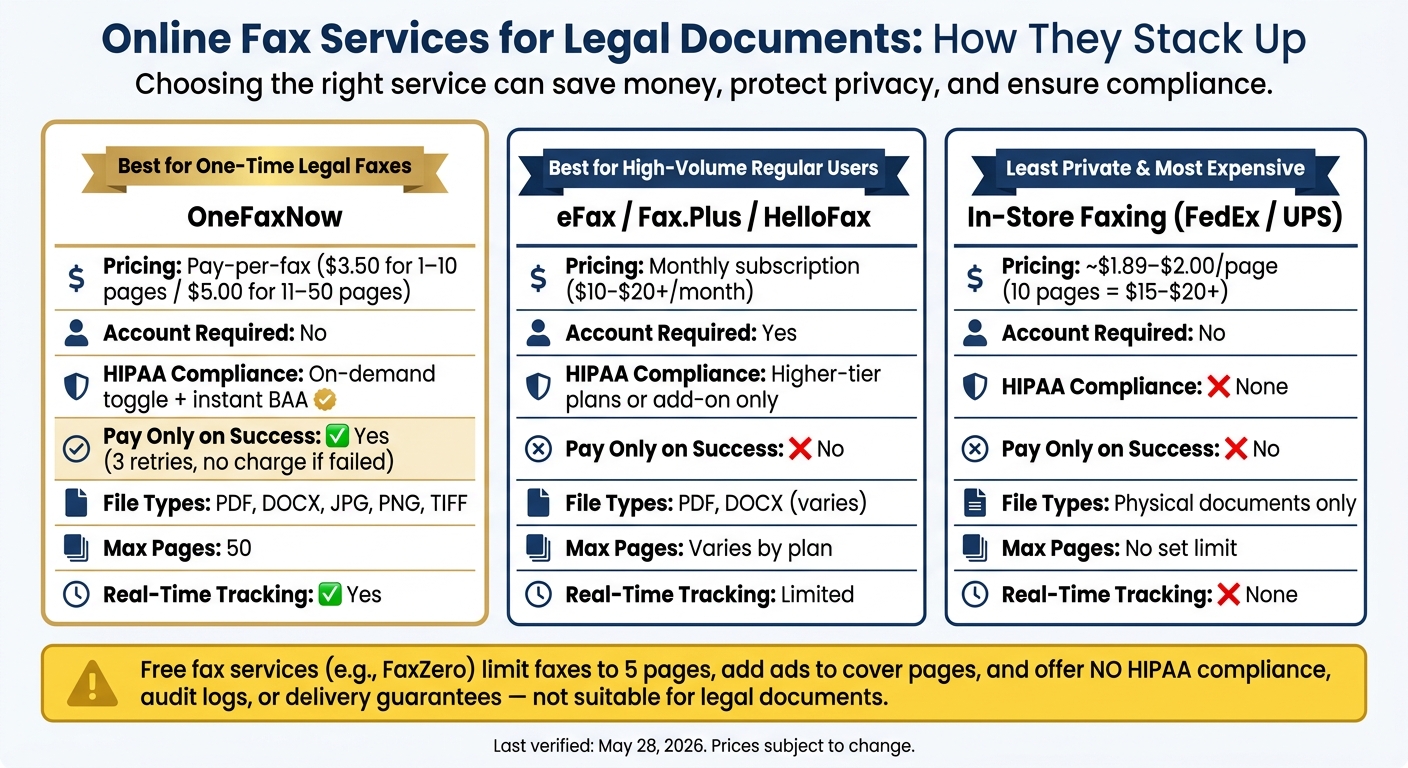
OneFaxNow vs. Other Online Fax Services for Legal Documents
When it comes to legal documents, choosing the right online fax service is critical. A wrong decision could lead to unexpected costs, failed transmissions, or even compliance issues.
OneFaxNow vs. Other Online Fax Services
Many popular fax services - like eFax, Fax.Plus, HelloFax (now Dropbox Fax), SRFax, and MyFax - operate on a subscription basis. These plans typically cost between $10 and $20 or more per month, regardless of how often you actually use the service. For someone who only needs to send the occasional legal fax, this can feel like paying for features you don’t use.
OneFaxNow stands out by offering a pay-per-fax model with no need for an account. You pay $3.50 for faxes up to 10 pages or $5.00 for faxes between 11 and 50 pages, but only if the fax is successfully delivered [5]. If delivery fails after three automatic retries, you won’t be charged a cent.
| Feature | OneFaxNow | eFax / Fax.Plus / HelloFax | SRFax / MyFax |
|---|---|---|---|
| Pricing model | Pay-per-fax | Monthly subscription | Monthly subscription |
| Account required | No | Yes | Yes |
| HIPAA compliance | On-demand toggle + instant BAA | Higher-tier plans or add-on | Not publicly stated |
| Pay only on success | Yes | No | No |
| File types supported | PDF, DOCX, JPG, PNG, TIFF | PDF, DOCX (varies) | PDF, TIFF (varies) |
| Max pages | 50 | Varies by plan | Varies by plan |
| Real-time tracking | Yes | Limited | Not publicly stated |
Last verified: May 28, 2026.
With its pay-per-fax pricing, HIPAA compliance toggle, and real-time tracking, OneFaxNow is a strong choice for urgent legal filings.
But how do free and in-store fax options stack up?
Free Fax Services: The Trade-Offs
Free fax services may seem appealing at first glance, but they often lack the features necessary for handling legal documents. For example, FaxZero limits free faxes to 5 pages and adds advertisements to the cover page. More importantly, free services don’t offer HIPAA compliance, audit logs, or guaranteed delivery, making them unsuitable for sensitive legal use.
While these tools might work for casual communication, their lack of delivery confirmation and compliance features makes them a risky option for legal documents.
In-Store Faxing vs. Online Faxing
In-store faxing, available at places like FedEx and UPS, charges around $1.89–$2.00 for the first page, with discounts for additional pages. Sending a 10-page legal document this way could cost $15–$20 or more.
Beyond the cost, in-store faxing involves handing over physical documents to a retail employee and using shared equipment. This raises privacy concerns, especially for sensitive legal matters. By contrast, online faxing allows you to send documents directly from your phone or computer, giving you complete control over your information.
While in-store faxing might be an option if you lack internet access, it sacrifices both privacy and convenience. For legal documents, online faxing - especially with services like OneFaxNow - offers better pricing, enhanced privacy, and a clear delivery record, making it the smarter choice.
When to Fax and When to Use a Different Filing Method
Check Court and Agency Rules Before You Fax
Before sending a fax, make sure the court or agency accepts faxed filings. Carefully review their rules, including what types of documents they allow, any technical requirements (like cover sheet details or page limits), and whether fees apply.
Here’s a key point: some courts only consider a fax "filed" once the clerk actually receives it - not when you send it. This distinction can be critical if you're up against a deadline. Beyond technicalities, think about whether faxing is the best option for your situation.
Cases Where Faxing Is Not Enough
There are situations where faxing won’t meet legal or procedural requirements:
- Original notarized documents: These often require a wet-ink signature. Faxing might work temporarily, but you'll likely need to follow up with the original document.
- Service of process: Serving legal documents, like lawsuits or subpoenas, typically requires personal delivery or certified mail unless a judge explicitly allows faxing.
- Special filings: Documents like probate filings, deeds, or anything requiring "certified mail" or "personal delivery" by statute must be submitted using those methods.
| Situation | Recommended Method |
|---|---|
| Emergency motion with an imminent deadline | Fax (if court rules allow) |
| Serving a lawsuit or subpoena | Personal service or certified mail |
| Original notarized affidavit or deed | In-person or certified mail with original |
| Routine agency form (IRS, SSA, VA) | Fax or mail per agency instructions |
| Federal court filing | E-filing via CM/ECF |
When you're unsure, choose the more secure option. A rejected fax can waste precious time. For fast and reliable fax submissions, services like OneFaxNow provide real-time tracking and delivery confirmations.
Once you confirm faxing is allowed, always secure proof of delivery for your records.
How to Save Proof That Your Fax Was Delivered
A fax confirmation alone might not be enough to prove the recipient received your document. To create a stronger record, keep all related materials in one organized location.
If you're using a service like OneFaxNow, save the confirmation email and tracking details as a PDF. Label it clearly (e.g., "2026-05-28_Fax_to_Court_Motion.pdf") and store it alongside your original submission. For time-sensitive filings, check the timestamp on the confirmation and ensure it aligns with the court's deadline, factoring in the correct time zone.
To be extra cautious, call the clerk’s office after sending the fax. Confirm they received all pages and that everything is legible. Take notes during the call - this documentation could be crucial if any disputes arise.
Conclusion: Faxing Legal Documents from Your Phone, Step by Step
You no longer need bulky office equipment like printers, scanners, or fax machines to send legal documents. With just your smartphone and a stable internet connection, you’re good to go.
The process involves three simple steps: creating a clear PDF, sending it through a reliable service, and knowing when faxing may not be the best option. Start by using a scanning app or exporting a digital PDF to capture each page. Make sure the document is sharp, with clear signatures, stamps, and full page edges. For the best results, aim for 300 DPI in black and white.
Once your files are ready, services like OneFaxNow make the rest easy. You can upload up to 15 files (or 50 pages total), arrange them, input the recipient’s U.S. or Canada fax number, and only pay if the fax is successfully delivered after three retries. Pricing starts at $3.50 for 1–10 pages, and if the fax doesn’t go through, you pay nothing. For sensitive materials like medical records, you can activate HIPAA Mode for encrypted transmission, an audit log, and an instant Business Associate Agreement (BAA) for an extra $3.00 (Lite) or $5.00 (Standard).
Before sending, double-check that faxing meets the recipient’s requirements. Some agencies or courts may require certified mail or personal delivery instead. When faxing is acceptable, keep the confirmation email and delivery timestamp as proof, alongside your original document.
For routine legal tasks - such as demand letters, agency forms, or insurance claims - faxing from your phone is quick, affordable, and provides clear delivery confirmation. However, for more formal filings, it’s just one part of a larger strategy, as some cases may call for alternative methods.
OneFaxNow’s pay-per-fax system ensures you’re only charged for successful deliveries, and features like automatic retries and HIPAA mode make the process secure and efficient. It’s a straightforward solution that delivers on convenience and reliability.
Send a Fax Online - No Account Required
For sensitive documents, learn more about our HIPAA faxing options.
FAQs
Will a faxed copy count as an official court filing?
A faxed copy usually isn't considered an official court filing unless the court's rules explicitly permit it. Most courts now require e-filing or some form of formal service for official submissions. It's crucial to review the specific requirements of the court managing your case to ensure compliance.
How can I make sure my signature or notary seal is clear?
To digitize your documents effectively, consider using a mobile scanning app. These apps are designed to straighten pages and improve image quality, ensuring your PDF is clear and professional. If you're taking photos manually, make sure the document is well-lit, in focus, and that all signatures and seals are fully visible. Once you upload your file to OneFaxNow, it automatically optimizes the document for faxing by converting it to grayscale and compressing it for standard fax quality.
What should I do if the fax fails or misses the deadline?
If your fax doesn’t go through after three automatic retries, you won’t be charged. OneFaxNow only charges for successful deliveries and will release any payment authorization if the fax fails.
It’s important to note that faxing isn’t a replacement for formal legal service or court-mandated filings. Always confirm that faxing meets your needs, and if legal compliance is required, consider using certified mail or personal service instead.