How to Send a Fax from Your iPhone or Android Without a Fax App
Send faxes from your iPhone or Android in minutes using your browser—no app or account needed, pay-per-fax with optional HIPAA encryption.
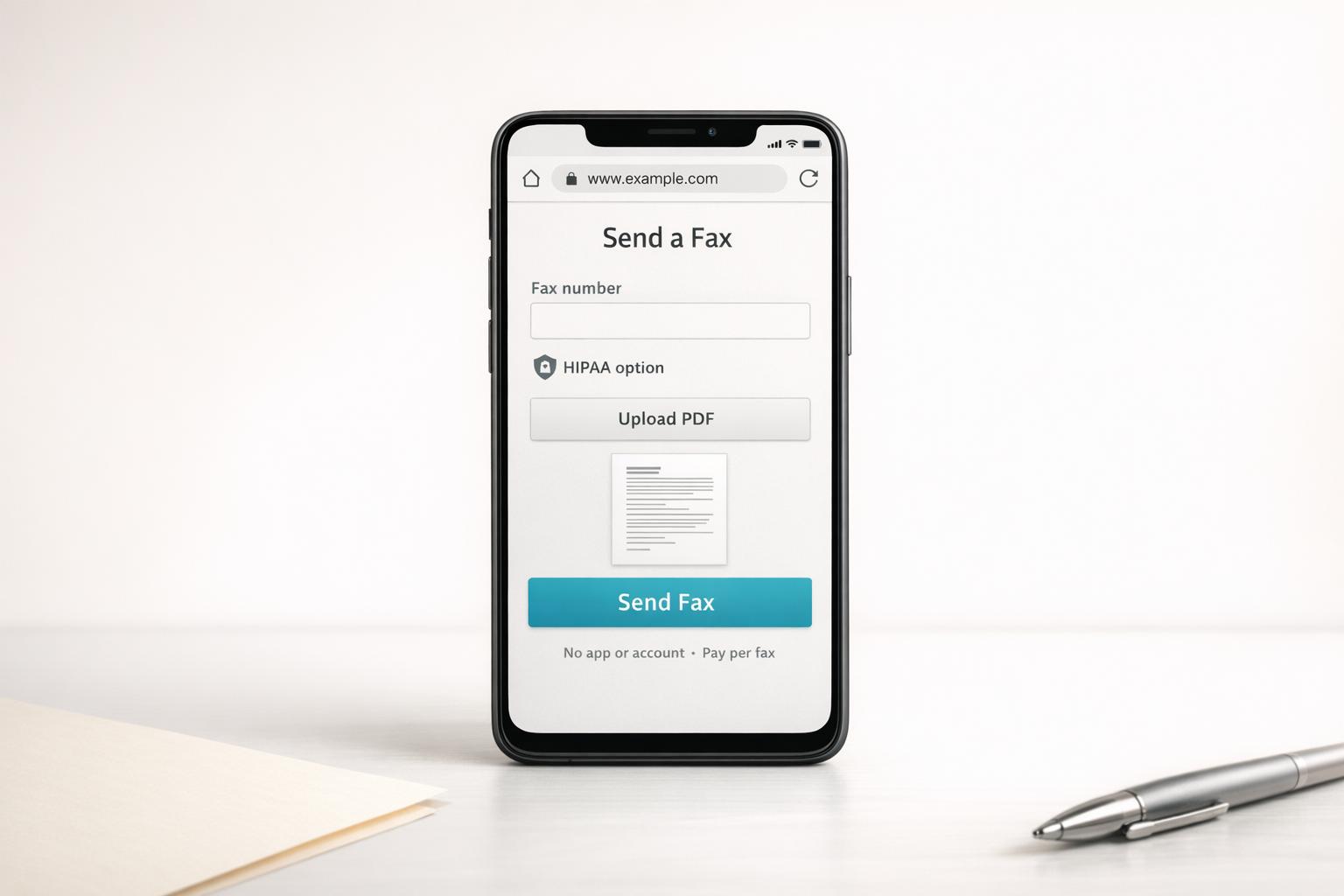
How to Send a Fax from Your iPhone or Android Without a Fax App
You can send a fax from your phone without downloading an app. Use your browser to access a pay-per-fax service like OneFaxNow. Here's how:
- No App Required: Skip downloads, account creation, and subscriptions.
- Simple Process: Upload your document, enter the fax number, pay a flat fee, and send.
- Affordable: $3.50 for 1–10 pages or $5.00 for 11–50 pages.
- Secure for Sensitive Documents: Enable optional HIPAA Mode for encrypted transmission and compliance.
This method is great for one-time faxes like medical forms or legal documents. Use your phone’s built-in scanner (iPhone Notes or Google Drive on Android) to prepare your documents as PDFs. Then, upload directly from local storage or cloud services like Google Drive or iCloud. No subscriptions, no hassle - just quick and secure faxing.
How to Prepare Your Documents for Faxing
To ensure a smooth faxing process, your document should be in a format that's easy to transmit. PDFs are ideal because they preserve your document's fonts, layout, and formatting without any changes during transmission. If your file is already digital, like a Word document, Google Doc, or PDF, you're mostly set. For physical documents, you'll need to scan them first.
Scanning Documents on iPhone Using Notes and Files
Your iPhone comes equipped with a built-in Notes app that doubles as a document scanner. Here's how to use it:
- Open a new note, tap the camera icon, and select Scan Documents.
- Position your phone over the page, and the app will automatically detect the edges and capture the scan.
- Once you're done, tap Save, then select the scan and hit the share icon to export it as a PDF to your Files app.
For the best results, scan in Black & White at 300 DPI. This setting enhances text clarity and reduces file size significantly. For example, a 12MB color scan can shrink to just 1–2MB without losing quality [2]. Once the file is saved in the Files app, it's ready for upload.
Scanning Documents on Android Using Google Drive
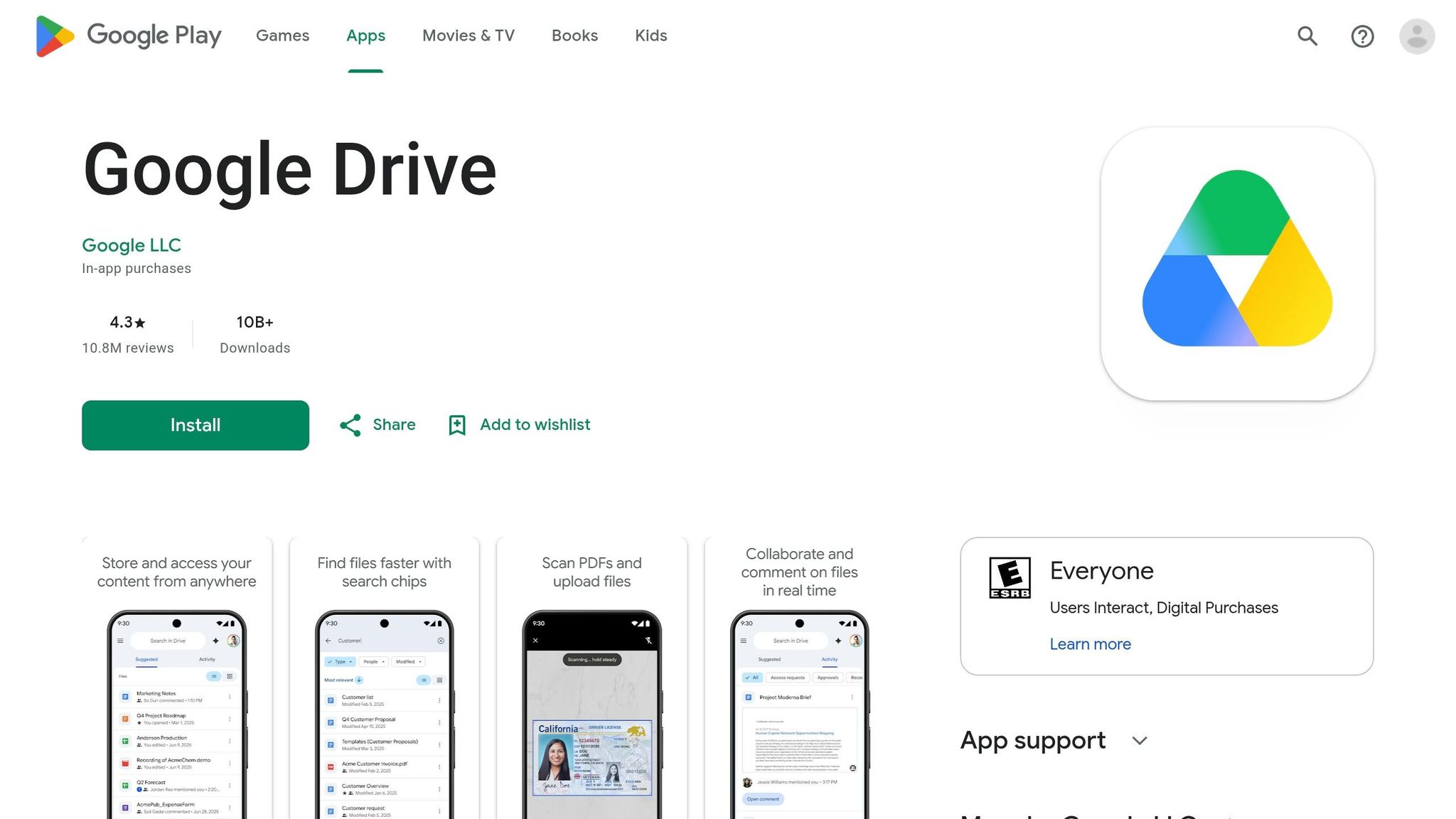
Android users can rely on Google Drive for scanning. Follow these steps:
- Open Google Drive, tap the "+" button, and select Scan.
- Use your camera to capture the page, and Drive will save it as a PDF automatically.
- The scanned file will appear in your Drive under "Scanned Documents", complete with a timestamp.
To download the PDF to your device, tap the three-dot menu next to the file and choose Download. The file will save to your Downloads folder, from where you can easily access it for faxing.
If your document is already in a digital format, you can skip the scanning process altogether.
Using Files from Email or Cloud Storage
If your document is stored in Gmail, iCloud, Google Drive, or Dropbox, you can upload it directly without scanning. For iOS, open the file in your cloud app, tap Share, and select Save to Files. On Android, tap the three-dot menu and choose Download [4].
However, keep these points in mind:
- Google-native files (.gdoc, .gsheet) aren't compatible for direct upload. You'll need to export them as PDFs first. Open the file, go to File > Download > PDF Document, and save it.
- Password-protected PDFs must be unlocked before uploading, as fax services can't process encrypted files [2].
Once your file is saved locally, free of encryption, and under 20MB, it’s ready to send [2].
| File Type | Preparation Steps Before Uploading |
|---|---|
| PDF, DOCX, TXT, JPG, PNG, TIFF | Ready to upload without changes [2] [4] |
| Google Docs / Sheets / Slides | Export as PDF via File > Download [4] |
| Password-protected PDF | Remove the password using a PDF viewer [2] |
| HEIC (iPhone photos) | Convert to JPG before uploading [4] |
Once your document is in the proper format, you're ready to send your fax through your mobile browser without any hassle.
How to Send a Fax from Your Phone Browser
Sending a fax from your phone has never been easier. With your document saved locally and ready to go, the process takes just a few minutes. Open Safari on iPhone or Chrome on Android, and head over to OneFaxNow.com. No need for an account, app download, or subscription - this method skips unnecessary app permissions and recurring fees entirely. Here's how to get it done.
The Basic Steps for Mobile Web Faxing
The process is straightforward and works the same on any device. Start by tapping "Choose Files" to upload your document from local storage, iCloud, or Google Drive. Enter the recipient's fax number, provide your email address for delivery confirmation, select optional add-ons if needed, make your payment, and hit send. Most faxes are delivered in under a minute [1][2]. If the recipient's line is busy, the system automatically retries up to three times before marking the fax as failed [1].
Sending a Fax with OneFaxNow
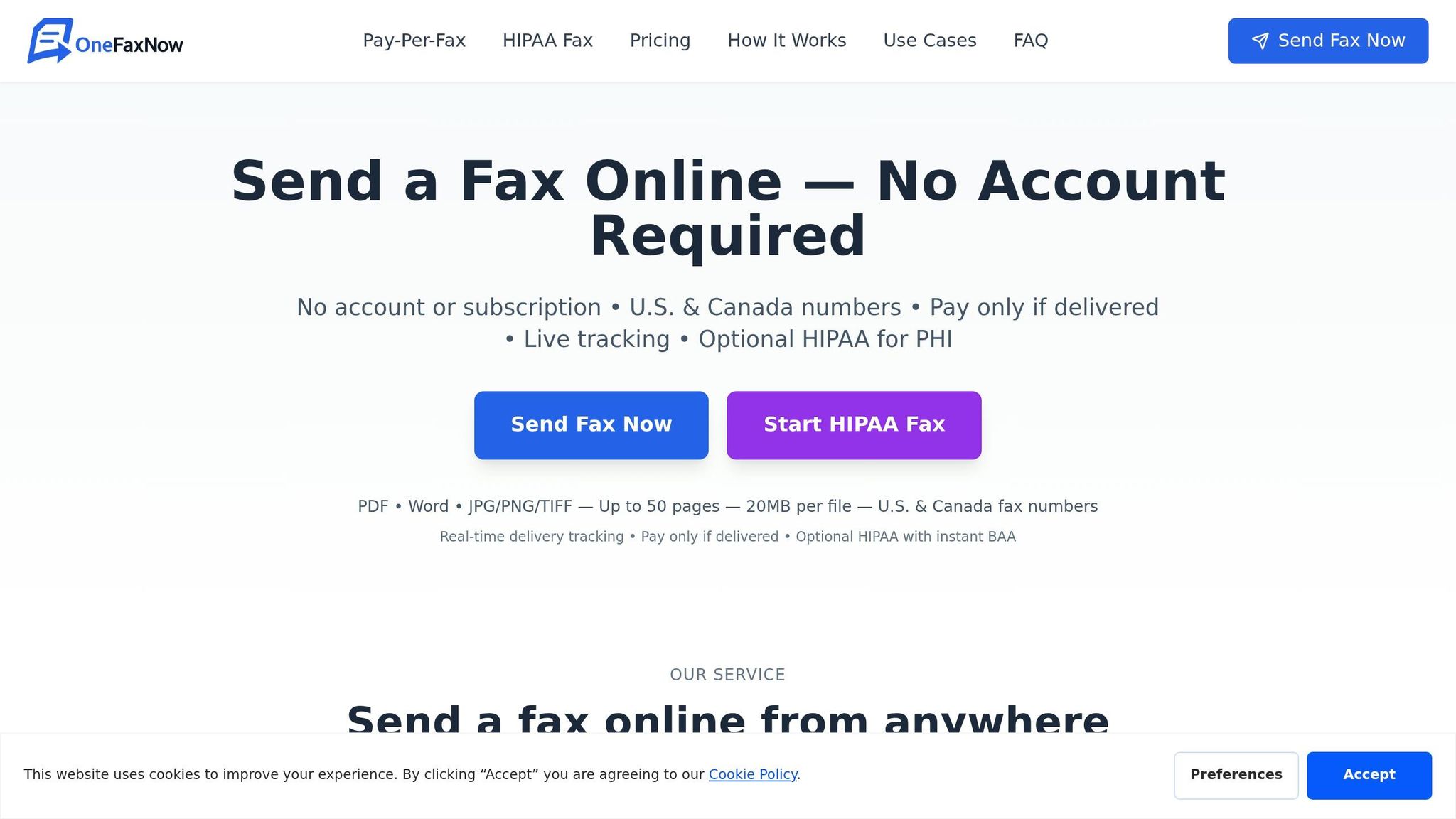
Here's a quick breakdown of the OneFaxNow mobile browser process:
| Step | What to Do |
|---|---|
| 1. Open | Visit OneFaxNow.com in Safari or Chrome |
| 2. Upload | Tap "Choose Files" - upload up to 15 files, 50 pages total, 20MB per file |
| 3. Enter Details | Add the recipient's fax number and your email address |
| 4. Add Options | Toggle cover page or HIPAA Mode if required |
| 5. Pay | Use Apple Pay, Google Pay, or a card through Stripe |
| 6. Track | Get live status updates, from Sending to Delivered |
Pricing is simple: $3.50 for 1–10 pages (Lite) and $5.00 for 11–50 pages (Standard) [1][2]. The browser option is slightly less expensive than the app, which charges $3.99 and $5.99 respectively [1][6]. Importantly, payment is only finalized after successful delivery. If all retries fail, the authorization is released, and you won’t be charged [1][6]. This pay-per-fax setup is ideal for occasional use, whether for personal or professional needs.
Using HIPAA Mode for Healthcare and Legal Faxes
For sensitive documents like medical records or insurance forms, the process remains just as easy but with added security. By selecting HIPAA Mode before uploading your file, you activate encrypted transmission, stricter handling protocols, and audit logging - all from the same browser interface. There’s no need for an enterprise plan or IT approval.
The HIPAA add-on costs $3.00 extra for Lite faxes (total: $6.50) and $5.00 extra for Standard faxes (total: $10.00) [1][6]. Additionally, a Business Associate Agreement (BAA) is instantly generated and available for download from the compliance dashboard. This feature is especially useful for healthcare providers or other entities that need to meet regulatory requirements quickly.
"OneFaxNow takes a different approach: download your file from Drive, upload it at OneFaxNow.com, pay $3.50, and your fax goes out. No add-on, no account, no recurring charges." - OneFaxNow [4]
Browser-Based Faxing vs. Apps and Other Services
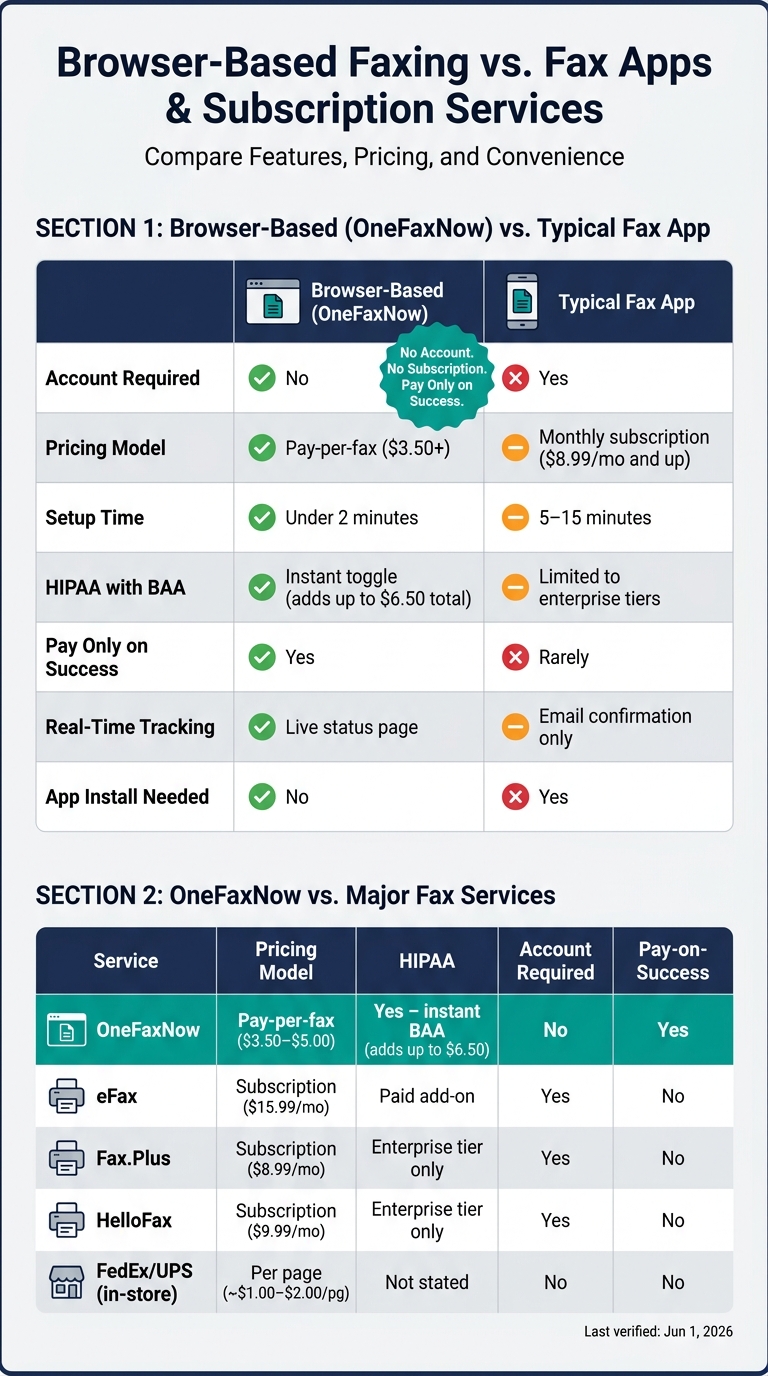
Browser-Based Faxing vs. Fax Apps & Subscription Services
Browser-Based Faxing vs. Fax Apps
Fax apps often come with unnecessary hurdles like mandatory downloads, account creation, and recurring subscriptions - even if you're only sending one fax. Browser-based faxing, on the other hand, keeps things simple. Just open a browser like Safari or Chrome, upload your document, and send your fax in under two minutes [5].
Privacy is another major perk. Unlike many fax apps that require access to your contacts, storage, or camera, browser-based services don’t ask for any special permissions.
| Feature | Browser-Based (OneFaxNow) | Typical Fax App |
|---|---|---|
| Account required | No | Yes |
| Pricing model | Pay-per-fax ($3.50+) | Monthly subscription ($8.99/mo and up) |
| Setup | Under 2 minutes | 5–15 minutes |
| HIPAA with BAA | Instant toggle (adds up to $6.50 total) | Limited to enterprise tiers |
| Pay only on success | Yes | Rarely |
| Real-time tracking | Live status page | Email confirmation only |
| App install needed | No | Yes |
Last verified: Jun 1, 2026.
OneFaxNow’s pay-per-fax approach is perfect for occasional, secure faxing without the hassle of subscriptions or unnecessary downloads. But how does it compare to major subscription-based fax services? Let’s break it down.
OneFaxNow vs. Major Fax Services
When comparing OneFaxNow to traditional subscription-based services, the benefits of browser-based faxing become even clearer. Services like eFax (starting at $15.99/month), Fax.Plus (starting at $8.99/month), and HelloFax (starting at $9.99/month) are geared toward users with frequent, high-volume faxing needs. For someone who only sends faxes occasionally, these subscriptions can feel like overkill.
OneFaxNow eliminates hidden fees with its straightforward, per-fax pricing. Plus, while many subscription services reserve HIPAA-compliant faxing for their costly enterprise plans (often $25/month or more), OneFaxNow offers an instant HIPAA Mode toggle for as little as $6.50 total. Even in-store options like FedEx or UPS charge per page (around $1.00–$2.00) but lack features like HIPAA compliance, tracking, or delivery confirmation.
| Service | Pricing Model | HIPAA Availability | Account Required | Pay-on-Success |
|---|---|---|---|---|
| OneFaxNow | Pay-per-fax ($3.50–$5.00) | Yes – instant BAA (adds up to $6.50) | No | Yes |
| eFax | Subscription ($15.99/mo) | Paid add-on | Yes | No |
| Fax.Plus | Subscription ($8.99/mo) | Enterprise tier | Yes | No |
| HelloFax | Subscription ($9.99/mo) | Enterprise tier | Yes | No |
| FedEx / UPS (in-store) | Per page (~$1.00–$2.00/pg) | Not publicly stated | No | No |
Last verified: Jun 1, 2026.
For occasional faxing, OneFaxNow stands out with its clear pricing, real-time tracking, and easy-to-use HIPAA compliance toggle - all without requiring a subscription or account. It’s an efficient, no-fuss solution for secure document transmission.
sbb-itb-0df24da
Troubleshooting and Best Practices
How to Avoid Common Faxing Errors
Faxing errors often stem from simple, avoidable mistakes. One of the most frequent issues is entering an incorrect fax number. Just one wrong digit can mean your document either doesn’t reach its destination or ends up in the wrong hands. To avoid this, always double-check the 10-digit number for U.S. or Canada recipients before hitting send[2].
Another common issue is file compatibility. For example, PDFs that are password-protected won’t transmit correctly. To fix this, unlock the file using a PDF viewer or save it as a new, unprotected PDF. If you’re using an iPhone, make sure to convert HEIC or HEIF photos to JPG before uploading. Similarly, files compressed in ZIP or RAR formats need to be extracted before faxing[4]. For more detailed guidance on preparing files, check the document preparation section.
Pay attention to scan quality as well. A quick test is to zoom in at 100% - if the text appears blurry, it will likely be unreadable for the recipient. For paper documents, scan in black and white at 300 DPI to ensure clarity while keeping file sizes manageable.
File size and page limits are also important. Keep individual files under 20 MB, and limit your total fax to 15 files or 50 pages[2][4]. If a transmission fails, OneFaxNow automatically retries up to three times. If it still doesn’t go through, the payment authorization is released, and you won’t be charged[1][2]. By following these steps, you can avoid common pitfalls and enjoy the convenience of browser-based faxing.
How to Protect Sensitive Documents When Faxing
When faxing sensitive documents, security is key. Start by enabling HIPAA Mode before uploading any files. This feature encrypts your transmission and ensures automatic file deletion after delivery[2][5]. As mentioned earlier, HIPAA Mode adds an extra layer of protection with encryption and audit logs.
Browser-based faxing is inherently more secure because documents are uploaded directly to the fax server, bypassing third-party email systems entirely[5]. Additionally, HTTPS encryption safeguards your data, even if you’re using a public network[3].
For those in healthcare or other fields requiring compliance documentation, HIPAA Mode also generates an immutable audit log and provides a cryptographically signed Business Associate Agreement (BAA). This documentation is available immediately after sending the fax, offering peace of mind for compliance needs. The cost for HIPAA-compliant faxing starts at $6.50 for 1–10 pages, which includes a $3.50 base rate and a $3.00 HIPAA add-on[1][5].
Conclusion: Faxing from Your Phone Is Simpler Than You Think
Faxing has come a long way from the days of bulky machines and monthly subscriptions. Now, with just your iPhone or Android, you can handle everything using tools you already have - your phone's camera, browser, and scanning features.
The process is quick and hassle-free. Simply open your browser, head to a pay-per-fax service like OneFaxNow, and you're good to go. There's no need to download an app, create an account, or commit to a subscription. Just upload your document, pay securely, and send it off.
This method is perfect for everyday tasks like sending a signed lease to your landlord, submitting intake forms to a doctor's office, or forwarding HR paperwork to an employer that insists on faxes. A pay-per-fax service simplifies what used to be a tedious process and saves you money compared to paying $10–$15 a month for a subscription you might rarely use.
Privacy is another key benefit. Unlike fax apps that often require long-term access to your files, contacts, or camera, browser-based faxing keeps things simple and secure. For extra-sensitive documents like medical records or legal paperwork, you can enable HIPAA Mode for encrypted transmission and automatic file deletion after delivery.
So, the next time you need to send a fax, just grab your phone, open your browser, and take care of it in minutes. For detailed instructions on scanning, uploading, and tracking your fax, check out our complete guide on sending a fax online.
FAQs
Will my fax still send if the recipient’s fax line is busy?
Yes, your fax will still go through. If the recipient’s line is busy, the system will automatically try again - up to three times - to ensure it reaches its destination. You can monitor the progress as it happens and will get an email confirmation once the fax is successfully delivered. The best part? You’re only charged if the fax is delivered. If all attempts fail, you won’t be billed.
What should I do if my PDF is password-protected or too large?
If your PDF is password-protected, make sure to remove the password or any security settings before uploading - locked files can't be processed. For larger files, keep in mind that OneFaxNow allows uploads up to 20MB per file. If your file is too big, try compressing it or splitting it into smaller parts. You can upload up to 15 files in one session, with a combined total of 50 pages. During the process, PDFs are adjusted to ensure they meet fax-quality standards for smooth transmission.
When should I turn on HIPAA Mode?
When sending Protected Health Information (PHI) - like medical records, insurance claims, or legal documents containing sensitive personal details - activate HIPAA Mode. This mode is essential if you require an immediate Business Associate Agreement (BAA) or need a thorough audit trail. It ensures compliance by enabling advanced encryption, automatically deleting files after delivery, and enforcing strict data handling measures to safeguard sensitive information.